Learn · Ways of seeing · 2 min read
Timeline
Give items dates and the timeline view turns them into bars on a horizontal time axis.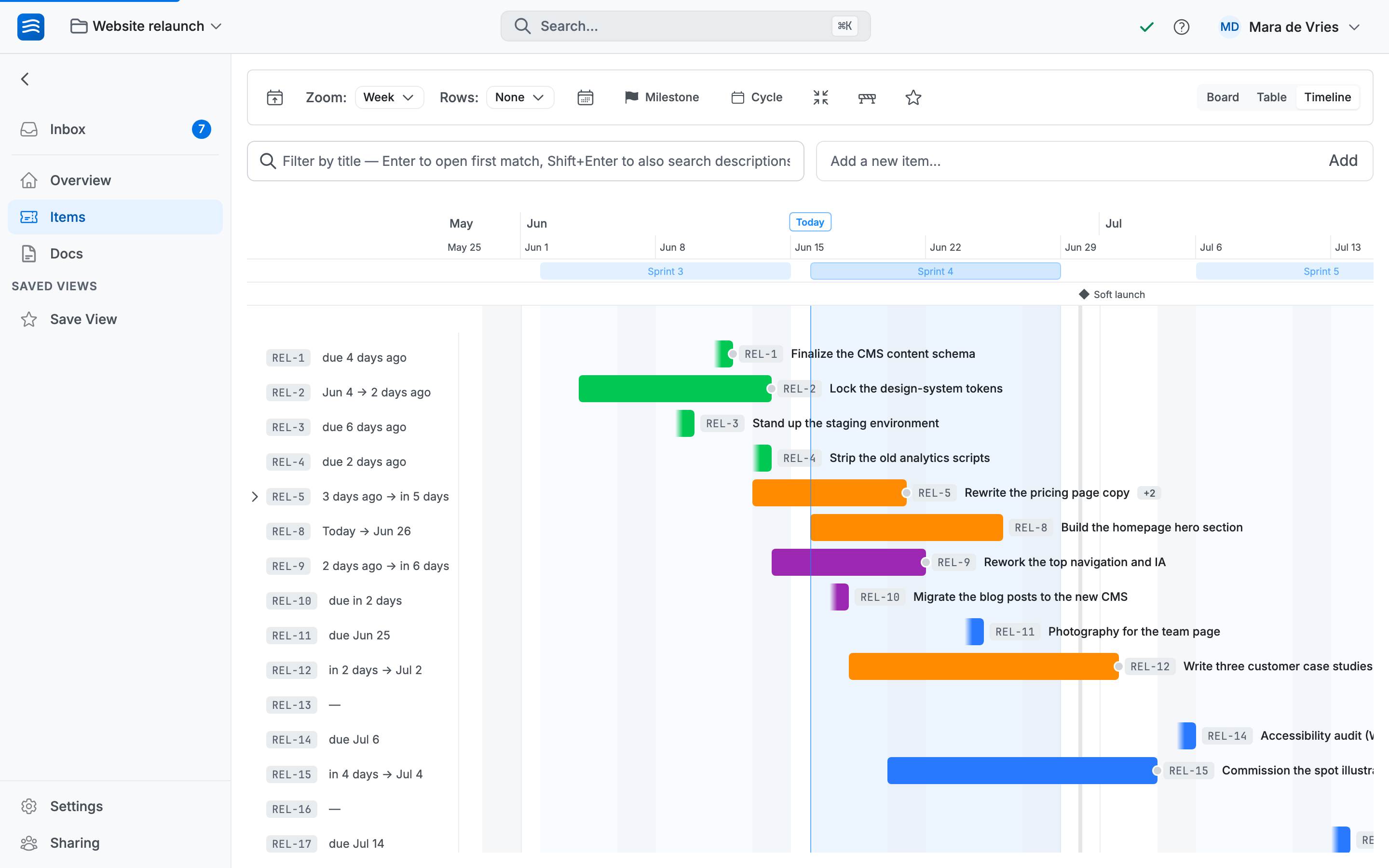
Reading it
- An item with a start and a due date is a bar spanning that range.
- An item with only a due date shows as a pill anchored to that day.
- Milestones appear as diamonds in a header row, each with a guideline dropping through the items. Cycles show as spans in their own row.
- A vertical line marks today; the Today button brings you back to it.
Zoom with the picker in the header: Day, Week, Month, or Quarter, depending on whether you're planning this week or this year.
Rescheduling by dragging
Everything on the timeline is directly editable:
- Drag a bar's left edge to change the start date.
- Drag the right edge to change the due date.
- Drag the whole bar to shift both, keeping the duration.
- Drag an undated item from the side rail onto the axis to schedule it.
No false precision here: a bar says "roughly these weeks", not "this will complete at 16:00 on Thursday". Wodo has no Gantt-style percent-complete cones. If you need to know how something is going, the item's labels and its people will tell you more.
When items depend on each other
The timeline becomes most useful when items declare what blocks them. Lines appear between bars, colored by whether the schedule actually works, and you can move whole chains together. That's the Dependencies page, in the Planning path.Going further
Prefer your deadlines next to your meetings? Calendar feeds put due dates, milestones, and cycles into Google Calendar, Apple Calendar, or Outlook.