Learn · Running an organization · 3 min read
Templates
By the third RFP response, the third client onboarding, the third product launch, your team knows how this kind of work goes. Templates turn that knowledge into a starting point.
A template is a space
There's no separate template editor to learn. You build a real space the way your process actually works: labels and completion states, completion prompts, milestones, cycles, saved views, perhaps example items and starter documents. Then, in Space Settings: Publish as Template.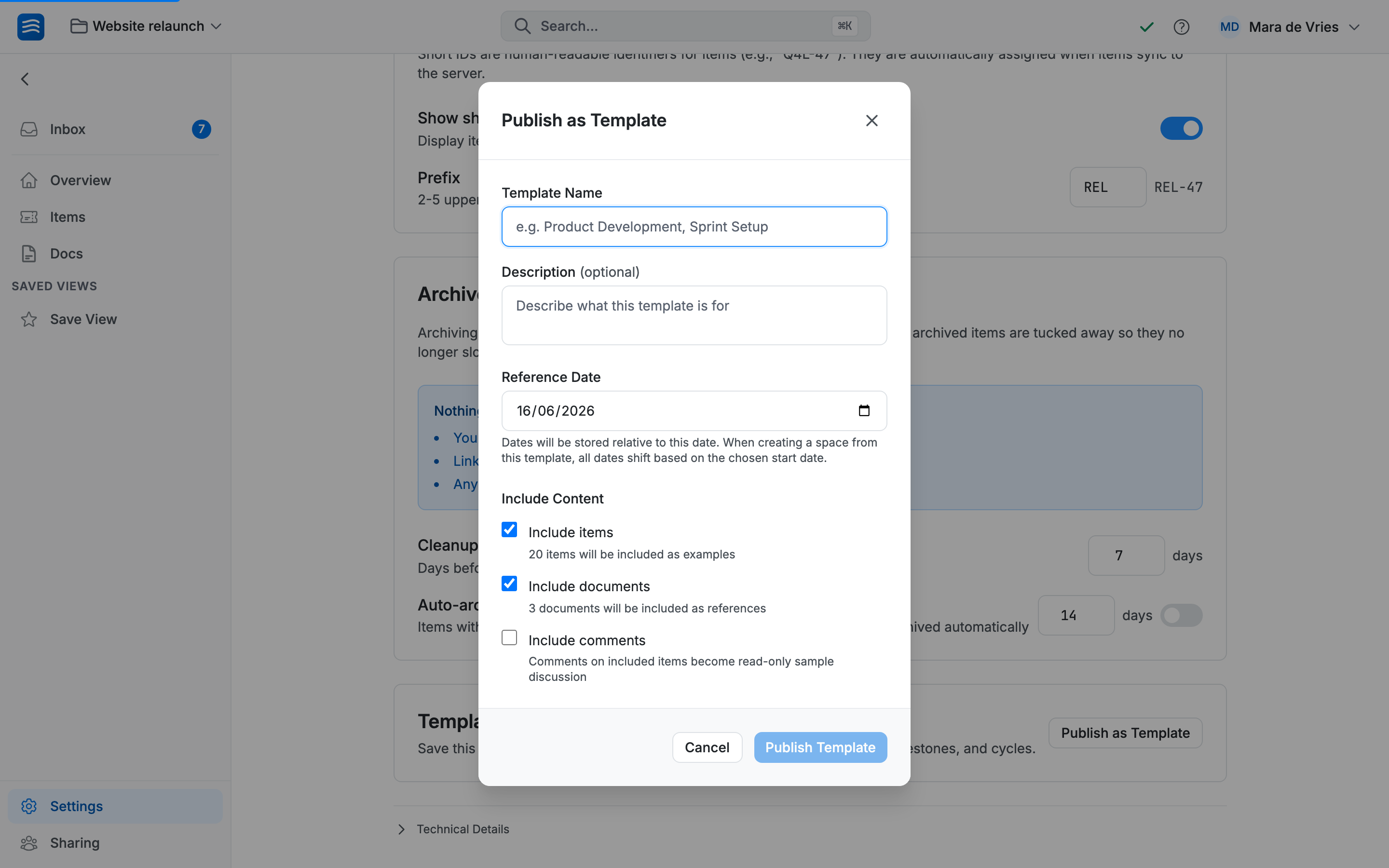
You choose what the template carries:
- The structure always travels: labels, values, colors, completion states and prompts, milestones, cycle configuration, saved views.
- Items are optional: include them as worked examples ("here's what a filled-in space looks like") or publish structure only.
- Documents are optional too: starter briefs, checklists, your decision- record format.
- Comments on included items become read-only sample discussion.
Dates that shift
A template stores its dates relative to a reference date. When someone creates a space from it and picks a start date, every milestone deadline and item date shifts accordingly. The template's "demo day, week 6" becomes your week 6.
Using and managing templates
A new space starts either blank or from a template. From a template, an organization admin picks one, names the space, sets a start date, done. The new space is a fresh copy: rename the labels, drop the milestones, change everything. The template got you started; you own what happens next. No admin-locked workflows. The people doing the work can adapt the process to reality.
Organization admins see all published templates under Organization → Templates: rename, delete, keep the library tidy. Updating a template's contents is a republish (see below).
(Smaller-scale reuse, like a meeting-notes format or a decision-record skeleton, wants a document template instead.)
Updating a published template
Your process keeps improving, and a template can keep up. Update Template republishes it: the structure, and any items and documents you included, are refreshed from a space, so the next person who creates from it starts from the better version. (Spaces already created from the template don't change. A template is a starting point, not a live link.)
The refreshed content can come from either of two places:
- The original space you published from — the template's home. Its Space Settings show Update Template.
- A space created from the template. If you refined the process while actually using a copy, you can push those refinements back to the template from there, with no need to recreate them in the original.
Updating replaces the template's contents (it's a republish, not a merge), so you'll confirm before it takes effect.