Learn · Context that travels · 4 min read
The Overview and widgets
Every space opens on its Overview: the first page anyone sees there. It's a document like the others, so you write on it what the space is for. It can also hold widgets: live counts, lists, and progress drawn from the space's items and documents.
The Overview
A new Default space starts with a dashboard. At the top is a line asking what the space is for, waiting to be replaced. Below it:
- four counts: My open items, Overdue, Blocked, and Due soon
- a breakdown of all items by Status
- two lists: your open items by due date, and what was finished in the last seven days
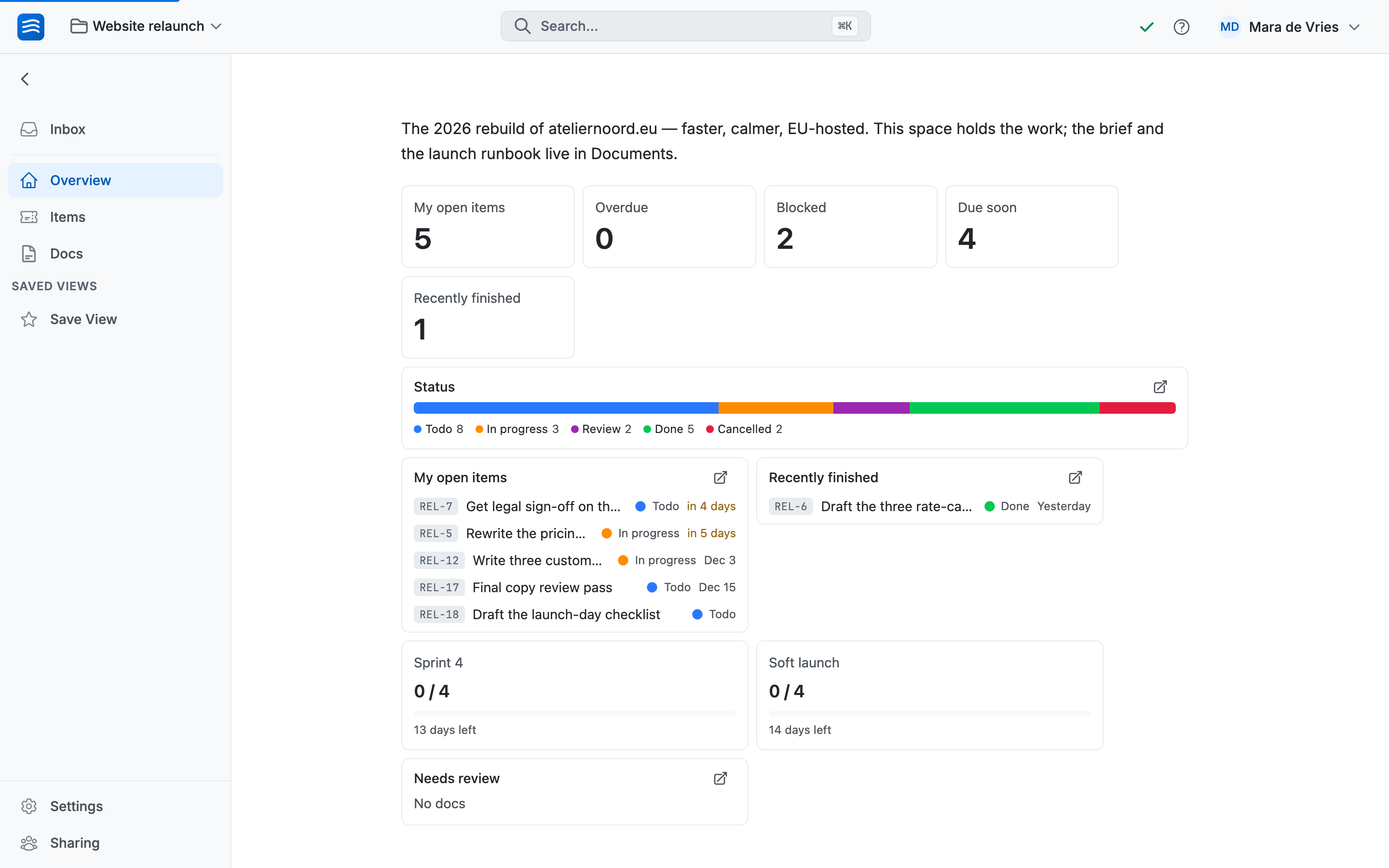
Keep the widgets you use and delete the rest; they're part of the page. If an Overview is empty, people who can edit it get Add suggested widgets: a set chosen from what the space has data for, such as a progress bar when it runs cycles or has an upcoming milestone.
The widgets
Type / in the Overview or in any document and choose one:
| Widget | What it shows |
|---|---|
| Count | The number of matching items. Click it to open them in the Items view, filtered. |
| Item list | Matching items with their primary label (such as Status) and due date, ordered by due date, recent activity, or your manual order. Click a row to open the item. |
| Breakdown | A bar of the matching items split by the values of one label (the primary label, unless you choose another). Click a value to see its items. |
| Progress | Finished out of all items in a cycle or milestone, and the days left. By default it follows the current or next cycle, else the next milestone; or pick one. |
| Doc list | Documents that need review, the ones you own, or the most recently updated. |
Suggested widgets in the same menu inserts the whole suggested set at the cursor.
Live, and for whoever is reading
Move an item to Done and the counts, lists, and bars change at once, for everyone looking. Nobody refreshes or rebuilds a report.
A widget answers for the person reading it. Mine means the reader, so the same Overview shows each person their own open items. Due today is the reader's today, and titles show in the reader's language. Readers can click through to the items; changing a widget needs edit access to the page.
Changing what a widget shows
When you edit the page, hover a widget for its toolbar. Set its size (small, medium, or full width; widgets on the same line sit side by side) or open Widget settings:
- A title, or none for one that describes the filters.
- Filters, from the same Filter menu as the Items view: assignee, labels, completion (Open, Finished, Recently finished), due date, milestone, cycle, parent, and blocked.
- Per widget: the order and number of rows in a list, the label a breakdown splits by, what a progress bar tracks, and which documents a doc list shows.
Changes save as you make them.
Widgets in documents
Any document can hold the same widgets, counting the whole space: a status page for a client, a team's weekly page, a milestone brief with its progress at the top. In a table cell, a widget renders compactly. A connected AI assistant can write them into a document too.