Learn · Ways of seeing · 3 min read
Changing many items at once
Ten items need the same milestone, or a whole column moves to next cycle. Select them, then change them once.
Selecting
On the board and in the table:
- ⌘-click (Ctrl-click on Windows and Linux) adds an item to the selection or takes it out. Each card and row also has a checkbox that appears when you hover it.
- Shift-click selects everything between the last item you picked and this one, across columns.
- From the keyboard, X selects the focused item, ⇧J / ⇧K extend the selection down or up, and ⌘A selects every visible item.
- For a whole group, Select all in column in a column's ⋮ menu on the board, or the header checkbox in the table.
Esc or Clear ends the selection.
Changing them together
With two or more items selected, the side panel becomes the selection panel: the selected items at the top, the fields you can set below.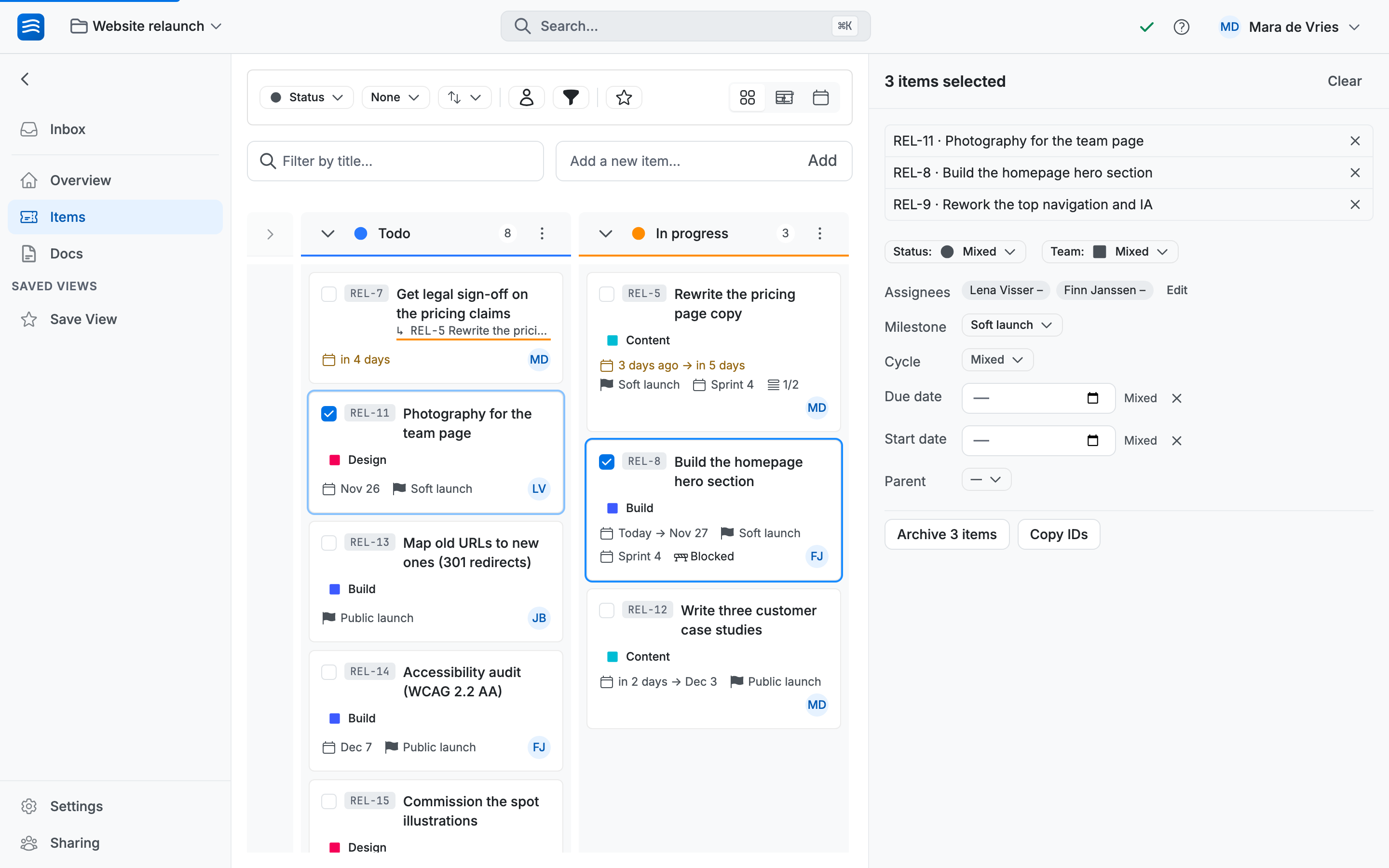
- Set labels, assignees, milestone, cycle, due and start date, or parent. Where the items differ, the field says Mixed; hover it to see the counts. Whatever you set applies to every selected item.
- Archive or Unarchive them, or Copy IDs for a list to paste elsewhere.
- The × next to an item removes it from the selection; clicking its name opens that item alone.
Every change is one step: the confirmation offers Undo, and ⌘Z reverses it for all the items at once. An item that a change moves out of your filter stays selected, marked hidden by filter, so you can still undo or keep working with it.
Good to know
- Dragging moves one card. Drag a selected card and only that card moves; the rest of the selection stays where it is.
- The palette works on the selection. ⌘K lists These items first, so you can set a value, assign, or archive by typing. See Search and the command palette.
- On a phone, a bar at the bottom shows how many items are selected; Edit opens the selection panel.
- Read-only access still lets you select items and copy their IDs.