Learn · Speed · 2 min read
Keyboard and Compact mode
Wodo is built keyboard-first: everything works with a mouse, but the keyboard is usually faster. Press ? in the app any time for this list.
Shortcuts
Everywhere
| Keys | Action |
|---|---|
| ⌘K | Command palette / search |
| ⌘⇧K | Search the whole organization |
| N | New item |
| ⌘D | Save the current view |
| ⌘Z / ⌘⇧Z | Undo / redo |
| ⌘⇧L | Cycle theme (light / dark / system) |
| ⌘⇧E | Toggle Compact mode |
| ⌘, | Settings |
| ? | This list |
On the board
| Keys | Action |
|---|---|
| J / K or arrows | Move between items |
| ← / → | Move between columns |
| Enter | Open the selected item |
| Esc | Close / back |
In an item's panel
| Keys | Action |
|---|---|
| L | Labels |
| A | Assignees |
| D | Description |
| C | Comment |
| I | Add sub-item |
| P | Parent |
| B | Blocked by |
Themes
Light, dark, or follow the system. ⌘⇧L cycles, or set it in your account settings.
Compact mode
Once you know the tool, the explanations start costing you screen. Compact mode (⌘⇧E) gives that space back:
- The sidebar collapses to icons; buttons drop their text labels.
- Rows tighten, paddings shrink, section headers go.
- The editor toolbar disappears: formatting via keyboard and
/commands. - Onboarding hints stop appearing entirely.
The timeline changes character most. In standard mode every item has its own row, with the hierarchy tree in a left rail, generous and readable. In Compact mode, items that don't overlap in time share a row, packed tight. The same quarter that needed scrolling now fits on one screen.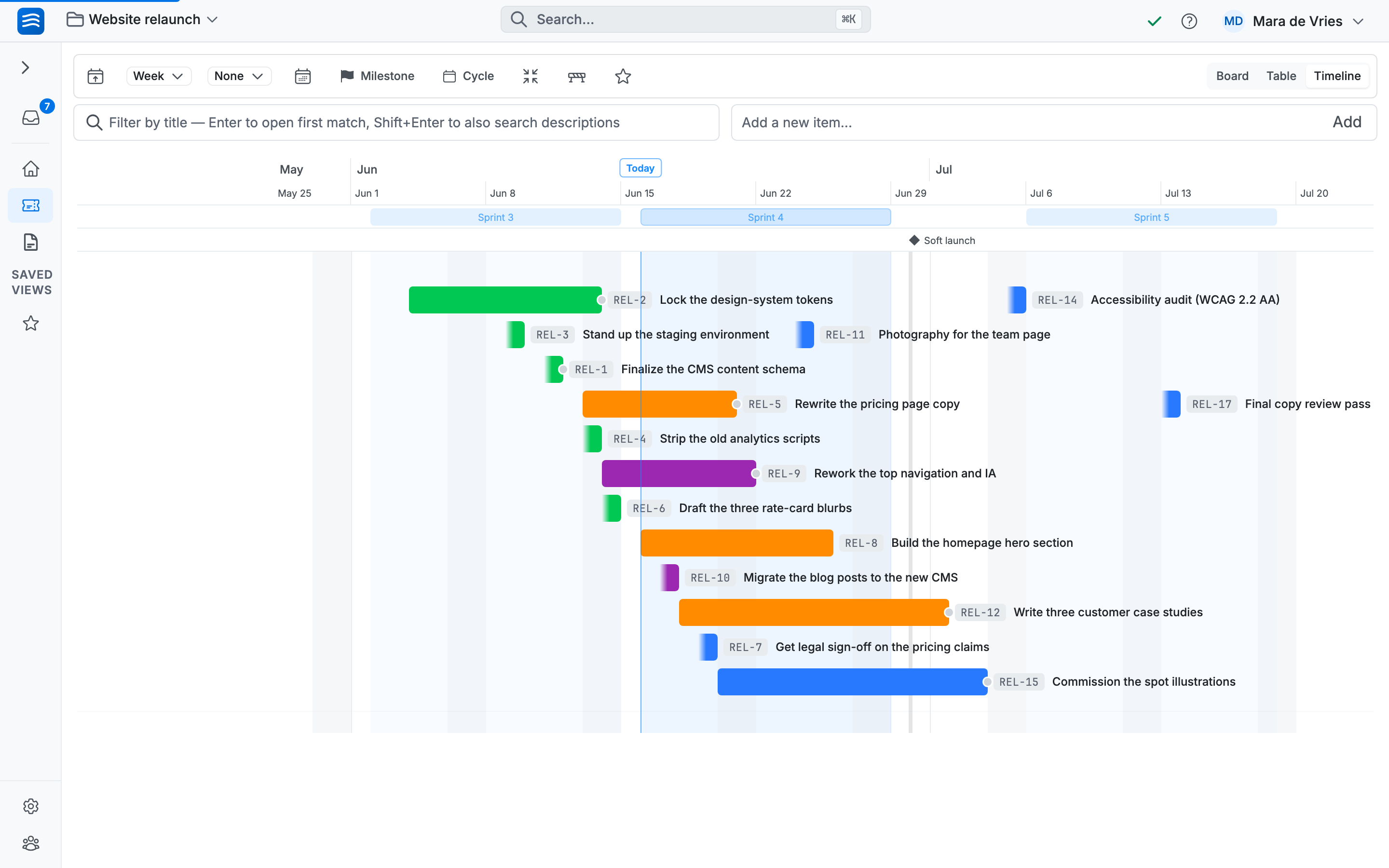
It's a mode, not a setting buried in an admin panel. Toggle it per person, whenever. Some people live in Compact; some toggle it for planning sessions and back for everyday work.