Learn · First steps · 3 min read
Items
Everything you track in Wodo is an item. We chose the most neutral word we could find on purpose: an item can be a bug, a contract clause, a scene to shoot, an idea, a chapter, a repair. Wodo doesn't assume your work is software.
The detail panel
Click an item (or select it and press Enter) to open its detail panel.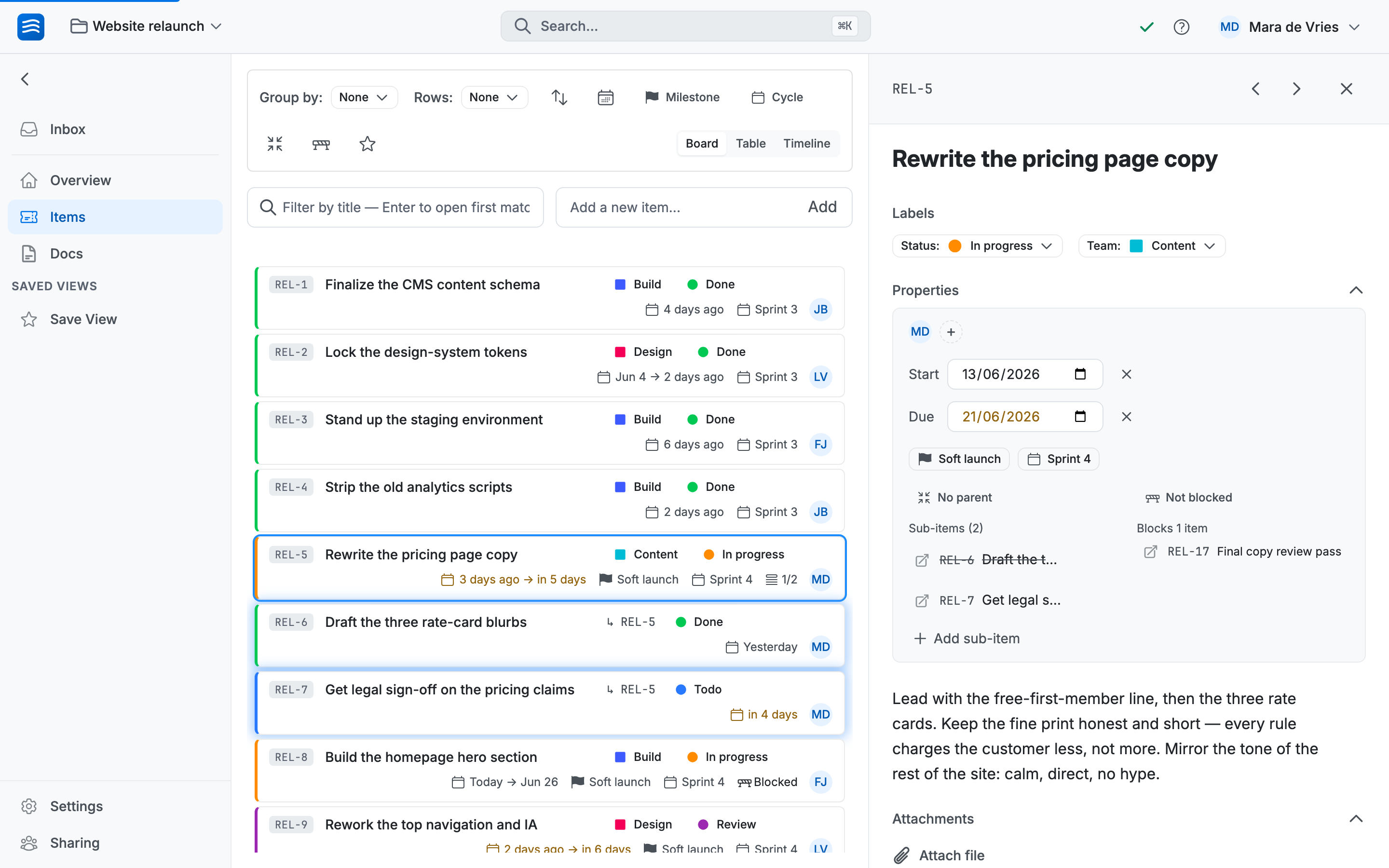 1234567↔
What the panel holds, top to bottom:
- Title — the item's name. Click it to rename the item right here.
- Labels — Status, Team, and any others. Covered properly on the next page.
- Assignees — the people or whole teams responsible for it.
- Dates — a due date, and optionally a start date. Items with dates show up on the timeline, and can follow you into your own calendar via calendar feeds.
- Sub-items: press I to add one. Each is a full item of its own; the parent shows a small done-count badge.
- Description — rich text, edited live with whoever else has the item open. Paste images straight in.
- Attachments — files that belong to the work.
↔ Drag the panel's left edge to resize it. Make it as wide or narrow as you like.
Comments live further down: discussion stays with the item. See Comments and mentions.
A few keys make the panel quick once you've opened it: L for labels, A for assignees, D for the description, C for a comment. The full list is under Speed.
Archive, don't delete
When work is finished (or abandoned) it gets archived, not deleted. Archived items disappear from your views but stay searchable and can be brought back. History has value: "didn't we try this last year?" deserves an answer.
You can archive a single item from its menu, or a whole column at once. Spaces can also archive completed items automatically after a number of days you choose. More on that with completion states.
In fact, there is no "delete item" in Wodo at all. An item can't be destroyed by a stray click or a bad mood. Permanent deletion exists only at the level of an entire space (an admin act, also the way to free storage), and for your account and organization when you truly leave.
Undo
⌘Z undoes your last change: moving a card, editing a label, archiving an item. ⌘⇧Z redoes it. This works across almost everything in a space.Going further