Learn · Ways of seeing · 4 min read
Board and table
Under every view in Wodo sits the same thing: one ordered list of items. Views are just ways of looking at it. Move a card in any view and you're editing the item itself. There's nothing to keep in sync, because there's only one list.
One label → columns
Group the board by a label and its values become columns. Group by Status and you have a classic kanban board. Group by Team and the same items regroup by who owns them. Dragging a card between columns is changing its label value.
Dragging is just the gestural way, though. The same change is equally at home in the item's detail panel (the label picker, one keystroke: L) or inline in the table. Labels, milestones, cycles, assignees: each has its picker, and the board, the panel, and the table are always editing the same item.
You can also group by milestone or cycle, with the same mechanics.
Two labels → a matrix
Add a second grouping and the board grows rows: Status across, Client down. Every cell is a real drop target. Drag an item into a cell and both labels update at once.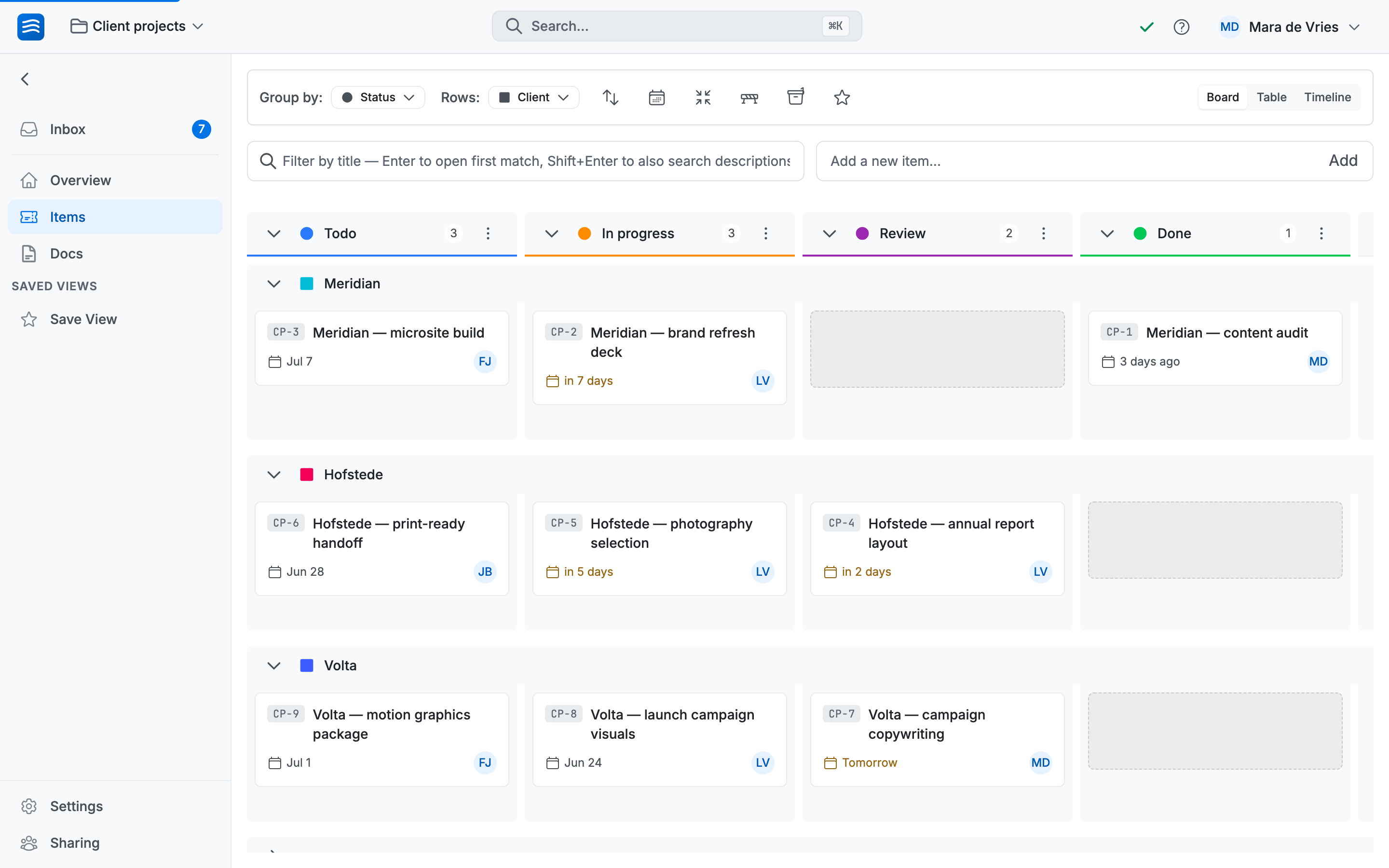
This is the view for questions like "what's still open, per client?" or "which team is overloaded in review?" No report needed, because it's just your items, grouped.
Filters
Narrow any view by label values, assignee, due date (overdue, today, soon), milestone, cycle, or blocked state. Or click a label chip on any card to filter by it directly. Filters combine with grouping: a board of Status × Team, filtered to one milestone, is three clicks.
The table
When you want density instead of cards, switch to the table view: one row per item, more properties visible at once, and everything editable inline: click a cell, type, enter.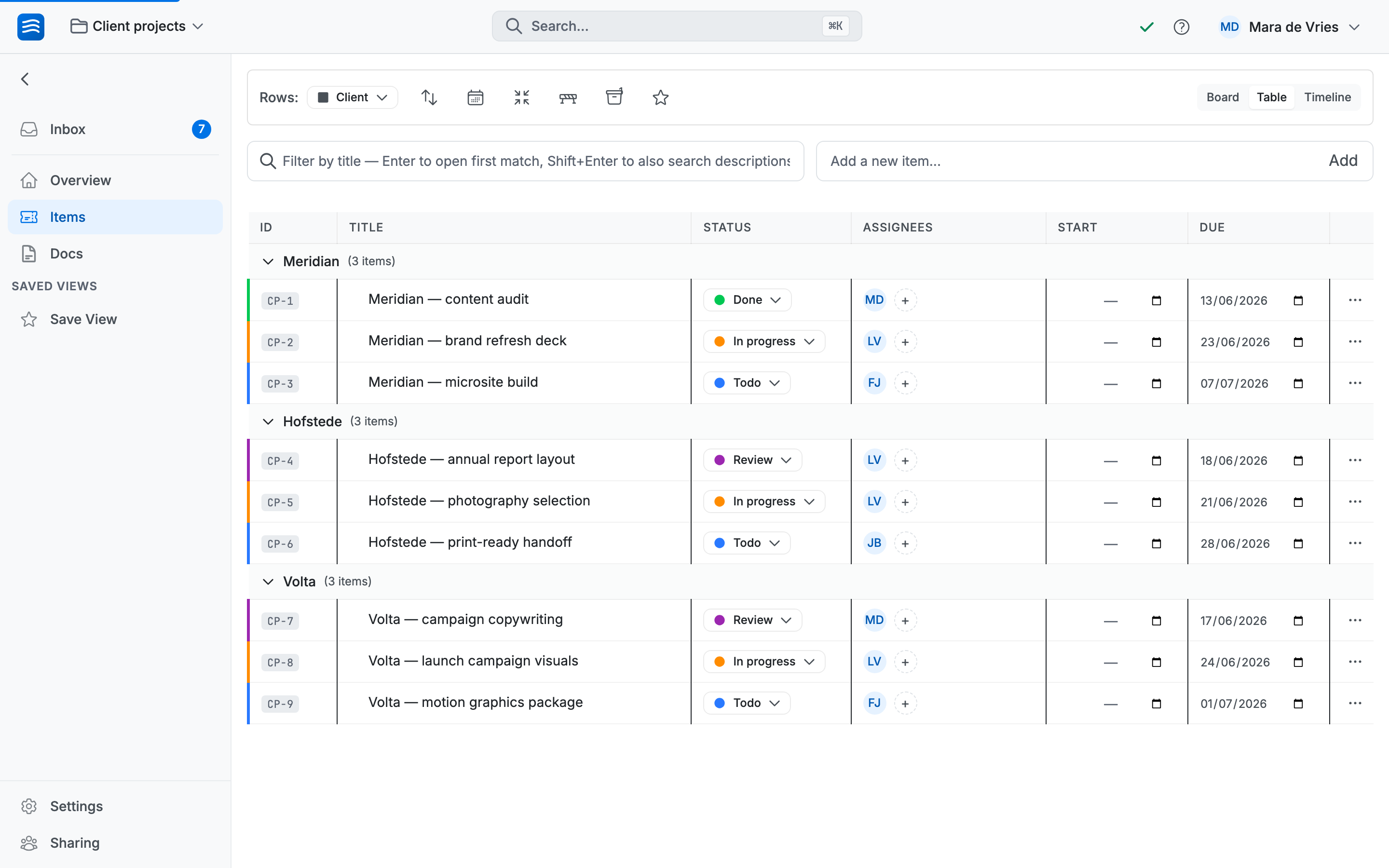
The table shows the same list in the same order as the board. The items live in one place; only the choice of columns belongs to the table.
Your columns
ID and Title are always there. What comes after them is up to you. Open Columns, the first button in the table's bar, and tick what deserves a column: any label, assignees, start and due dates, milestone, cycle. Drag a row in the menu, or use its arrows, to change the order. Reset to default undoes it all.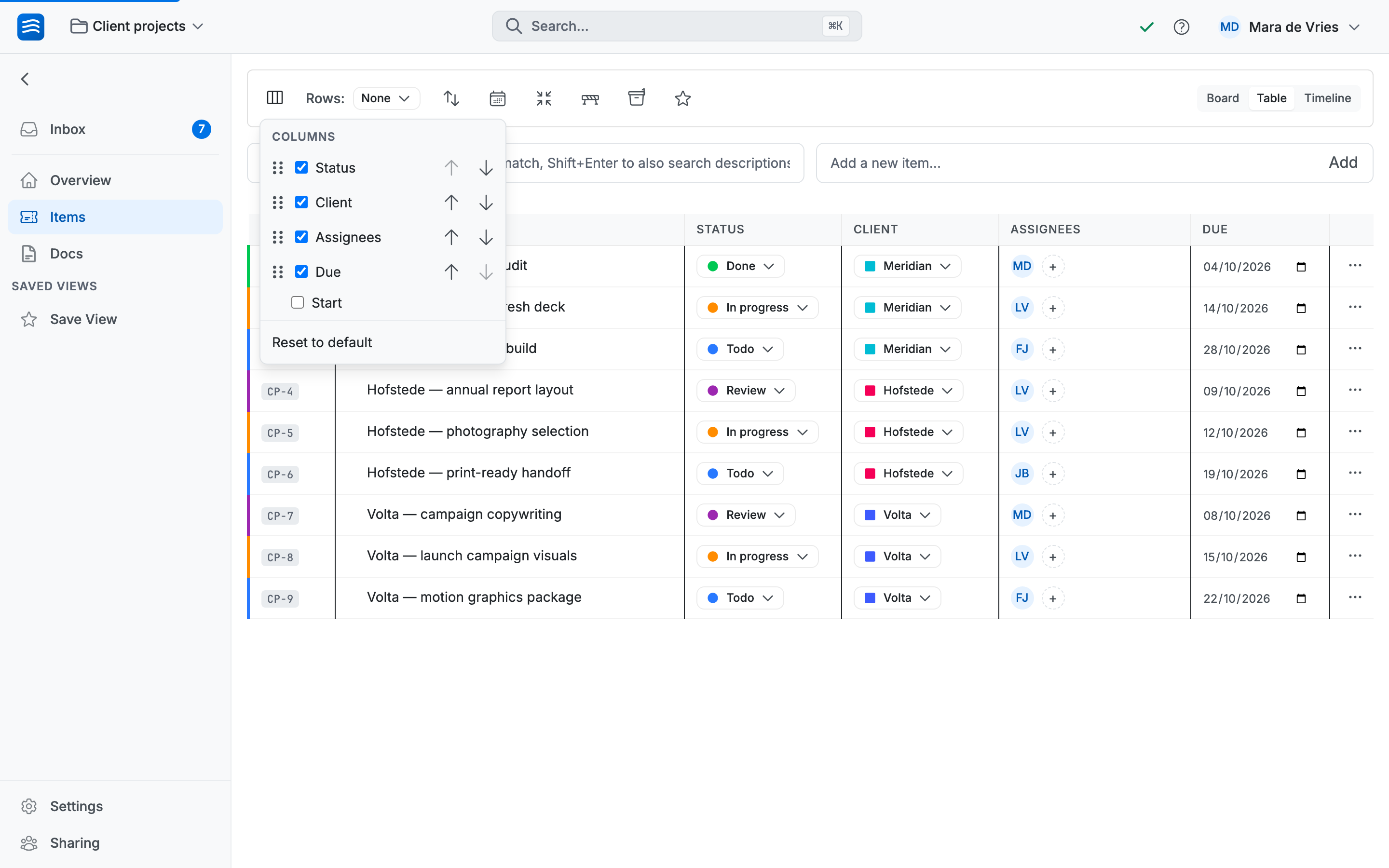
The columns belong to the view. They're still there when you go to the board and come back, they travel with the link you copy, and a saved view keeps them. The team's working table can show Status and Assignees, while the accountant's "Due soon" table shows Client and Due.Going further